Install with ISO Injection
This is EXPERIMENTAL
ISO injection is an experimental feature added in the Atlas Playbook 0.5.0 release, previous versions do not have this. If you experienced any bug using it, please report them on our Issue Tracker.
Warning
For general users, we only offer support for Atlas Playbook 0.5.0 installed on the latest, non-beta Windows 11 25H2 install. If you are on older versions, or have a unsupported Windows install, please follow our installation guide to get the latest release.
1. Download an ISO
You will need to download an ISO before you can inject the playbook.
Choose your desired Windows version's ISO file, which will be used later in the guide.
The buttons below download an ISO directly from Microsoft's servers. They get the latest version of your desired Windows version for Intel, AMD, and ARM CPUs.
Alternatives
Tip
Even though the downloader in our docs uses official Microsoft servers, you can still download the ISO directly from their website or from AME directly.
Windows 11
- Click the link above and find Download Windows 11 Disk Image (ISO) for x64 devices.
- Click on the"Select Download" dropdown, choose Windows 11 (multi-edition ISO), and click Confirm.
- Select your desired language and press Confirm.
- Click 64-bit Download to begin your download.
- Download the Windows 11 Media Creation Tool, then open it
- Click the Accept button to agree to the Microsoft license terms
- Select Create installation media (USB flash drive, DVD, or ISO file) for another PC, click Next, and choose:
- Language: Your desired language
- Edition: Windows 11
- Choose the ISO file option, then choose the download location
- After the ISO has completed downloading, click Finish
- Open your web browser, search
atlasos.net - On the website, click 'Get started', then click -> Already following the guide? at the bottom of the pop-up, and download the Atlas Playbook and AME Wizard
- Extract both downloads to your desktop
- Open
AME Wizard Beta.exefrom the AME Wizard folder- If there is a warning from SmartScreen that AME Wizard is an unrecognized application, bypass this warning by clicking More info and Run anyway
- Click on Updates at the top and make sure AME Wizard is up to date
- Click on the More Options tab on the left side of the window
- Select Download ISO and make sure Windows 11 is selected, then click OK.
This should download a Windows 11 25H2 ISO.
Please wait...
An error has occurred while processing your request. Try refreshing the page or using an alternative method.
Error: Unknown
A download should soon be started, if not, click here download the ISO.
Script Licensed under AGPL-3.0
Credit to the Microsoft Software Download Listing project
2. Injecting the playbook
- Open your web browser, search
atlasos.net - On the website, click 'Get started', then click -> Already following the guide? at the bottom of the pop-up, and download the Atlas Playbook and AME Wizard
- Extract both downloads to your desktop
- Open
AME Wizard Beta.exefrom the AME Wizard folder- If there is a warning from SmartScreen that AME Wizard is an unrecognized application, bypass this warning by clicking More info and Run anyway
- Click on Updates at the top and make sure AME Wizard is up to date
- Drag the previously downloaded ISO file into AME Wizard
- Drag
Atlas Playbook.apbxfrom your desktop into AME Wizard - Select the Windows 11 ISO from the left side
- Click on the Select a playbook to modify button
- Make sure AtlasOS is selected, and click Ok
- Click next when you see AtlasOS Playbook selected
- Select all the options you would normally choose when installing AtlasOS playbook
- At the end, you will be prompted to select which drivers you want to come with the ISO, we recommend keeping Include additional network drivers selected
- Click Next. You will be asked to choose an username and a password for the user account - provide them and then click Next. If you do not want a password, leave the box empty
- Wait for the injection to finish
3. Reinstalling Windows
Before continuing, we strongly recommend you back up any valuable data to an external drive or a cloud service.
Only if you have enough free storage, after finishing the Windows reinstall, Windows.old will be at the start of your Windows drive, containing your old data. You can retrieve data from the folder and delete it afterward, which this guide covers later.
This method only works if you're already on Windows.
-
Disconnect any cables providing internet to your computer, such as an ethernet cable. Do not reconnect any until instructed to do so
-
Right-click the previously downloaded ISO file and select Open With -> File Explorer
-
Open This PC in File Explorer, and remember the ISO's drive letter (e.g.
H) for the next step. The drive should look similar to CCCOMA_X64FRE_EN-GB_DV9
 -
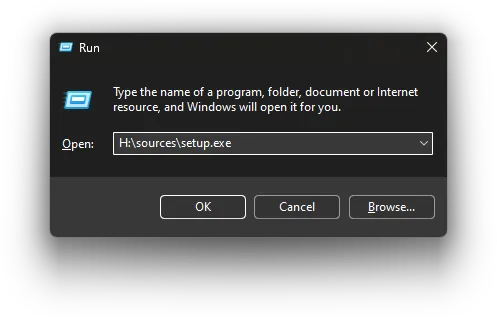
Press Win+R to open the Run dialog
-
Inside the Run dialog, type in the previously remembered drive letter, and then without a space, type
:\sources\setup.exeafter it. Example:H:\sources\setup.exe -
Press Enter on the Run dialog, and accept the User Account Control prompt
-
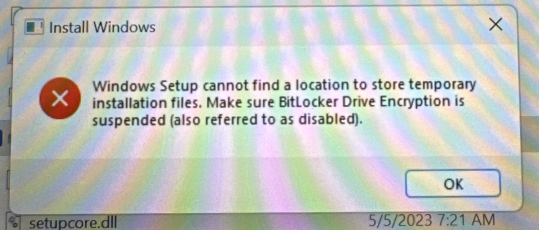
The message "Make sure BitLocker Drive Encryption is suspended" could appear from the Windows Setup when you press Enter. Refer to our BitLocker decrypting instructions to resolve this, then retry from step 5 onwards
-
Select No thanks when prompted for updates, then uncheck the box for I want to help make the Windows installation better
-
If prompted, click I don't have a product key, as Windows should auto-activate later
- If Windows doesn't auto-activate, you can enter a key later within Windows
-
Choose your edition of Windows.
Supported Editions
- Windows Pro
- Windows Pro for Workstation
- Windows Enterprise (Excluding LTSC, IoT LTSC)
Windows Home is not Supported. If the Windows Setup did not give a choice of edition and it installs Windows Home anyway, you can always change Windows edition later by changing your Windows product key once Windows has finished reinstalling, without having to reinstall anything.
-
Accept the license agreement and click Custom: Install Windows only (advanced)
-
Select your Windows drive, click Next, click OK to the warning about
Windows.old, and let the installation finish
This method works on Linux and Windows.
Tip
Even thought this method works on both Linux and Windows, please note that AME Wizard and ISO Injection only works in Windows.
-
Download the latest release of Ventoy and extract it wherever you feel comfortable.
- Linux users can get it using a package manager
-
Inside the Ventoy folder, run Ventoy2Disk
-
In the opened window, select your USB drive and click Install
- This will destroy all data on the USB drive!
-
Copy your downloaded ISO file into the USB drive (labeled Ventoy)
-
Disconnect any cables providing your computer internet, such as an ethernet cable
- Do not reconnect to the internet until instructed to
-
Restart your computer, boot into your BIOS' boot menu, then select the USB drive
'Security Violation' Error
Video Demonstration
Credit to Ventoy for the video demonstration.
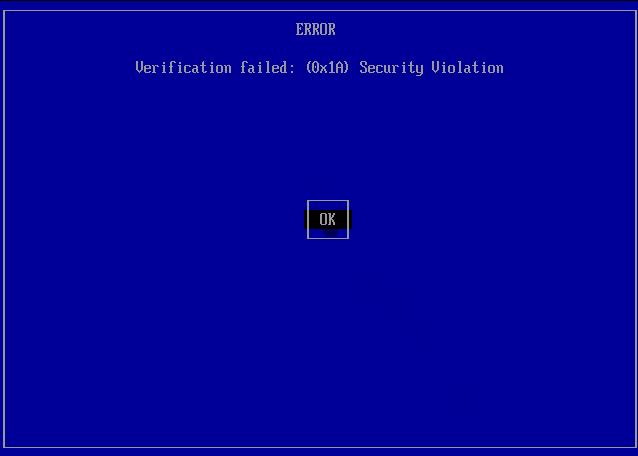
If you get an error screen saying there was a 'Security Violation,' follow the steps below:
1. Press Enter to load MokManager
2. Press any key to begin key management
3. Choose Enroll Key From Disk
- The controls are arrow keys to move and Enter to select
4. Choose
VTOYEFI5. Choose
ENROLL_THIS_KEY_IN_MOKMANAGER.cer6. Choose Continue, then Yes, and finally Reboot
7. Boot from the USB again, as the issue should be resolved
If it is still not working, try 'Hash Enrollment,' as detailed in Ventoy's guide.
-
Once booted into the Ventoy menu, select the Windows ISO using the arrow keys, press Enter, click Boot in normal mode, and press Enter again
-
If you're installing Windows 11, once booted into the Windows Setup, click 'Next' twice, then click 'Previous version of setup' in the bottom left corner of the window
-
Select your preferred language preferences, click Next, then click Install Now
-
If prompted, click I don't have a product key, as Windows will activate automatically later (as long as you have previously activated Windows legitimately)
-
Choose your Windows edition
-
Accept the license agreement and click Custom: Install Windows only (advanced)
-
At the 'Where do you want to install Windows?' screen, choose one of the following:
Previous Windows data
- Identify the disk partition you want to install Windows to by looking at the total sizes, then select it
- Click Next, then click OK to the warning about
Windows.old
This permanently deletes data!
Make sure to follow the instructions carefully to ensure you don't delete the wrong partitions.
- Identify the drive number you want to install Windows to
- You can identify your drives by their total sizes
- One by one, carefully delete your drive number's disk partitions
- Select the unallocated space of your drive number
- Click Next
This permanently deletes data on all drives!
- One by one, delete each disk partition in the window
- Select the unallocated space of the drive you want to install Windows to
- You can identify your drives by their total sizes
- Click Next
-
Wait for Windows to install
4. Initial setup (OOBE)
This step is different than most Windows 11 installs due to AME's custom OOBE. Simply follow the instructions on screen.
Warning
If asked to connect to the internet, please do so. AtlasOS requires an internet connection to be properly installed without issues
After this initial OOBE, your desktop will be similar to regular Windows 11. Please wait for the new user script to run before doing anything.
5. Your old Windows installation
If you previously followed steps that mentioned a Windows.old folder, you can find your previous Windows data at the start of your Windows drive in Windows.old.
When you're sure that you've retrieved any valuable data from it, follow these steps:
- Open Windows Settings -> System -> Storage
- Click Temporary files, and wait for it to scan your files
- Select Previous version of Windows, and then click Remove files
-
Next: -> Setting up Atlas